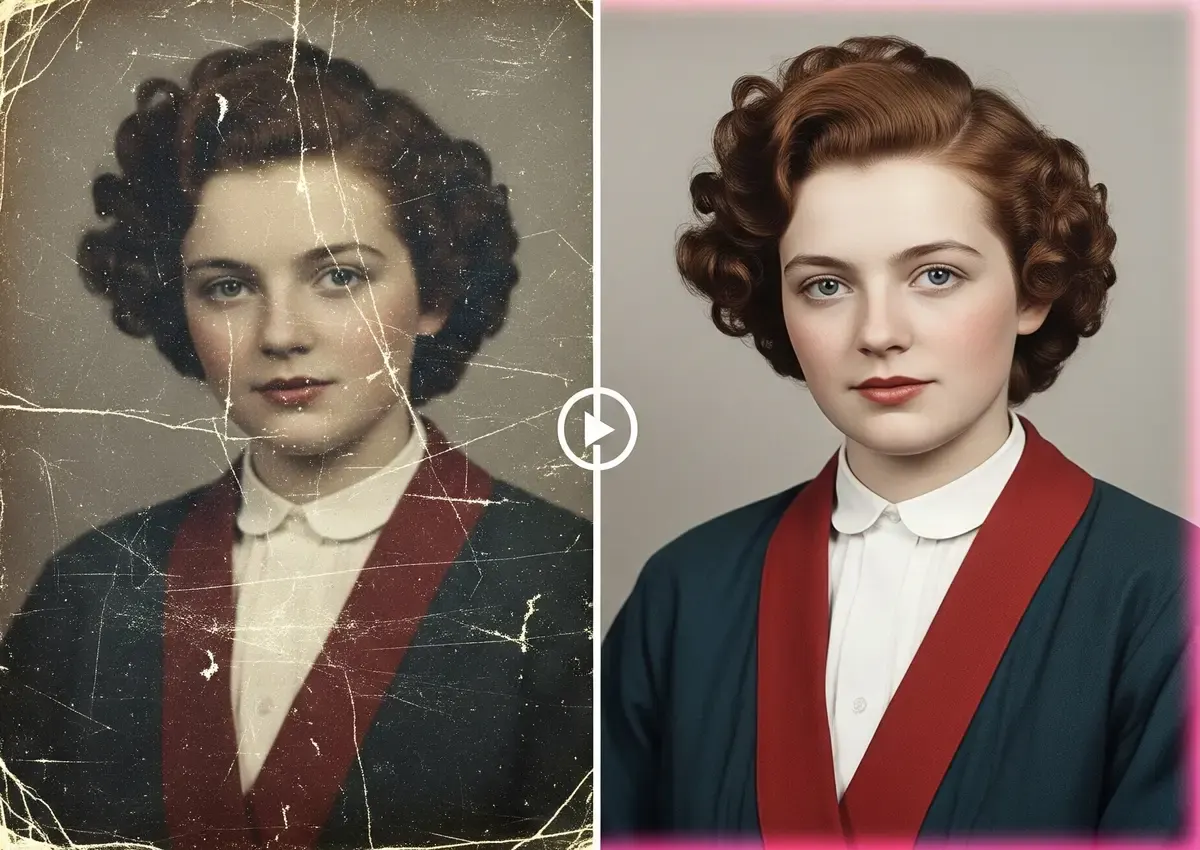
Free AI Photo Enhancer: Turn Blurry Photos Into HD
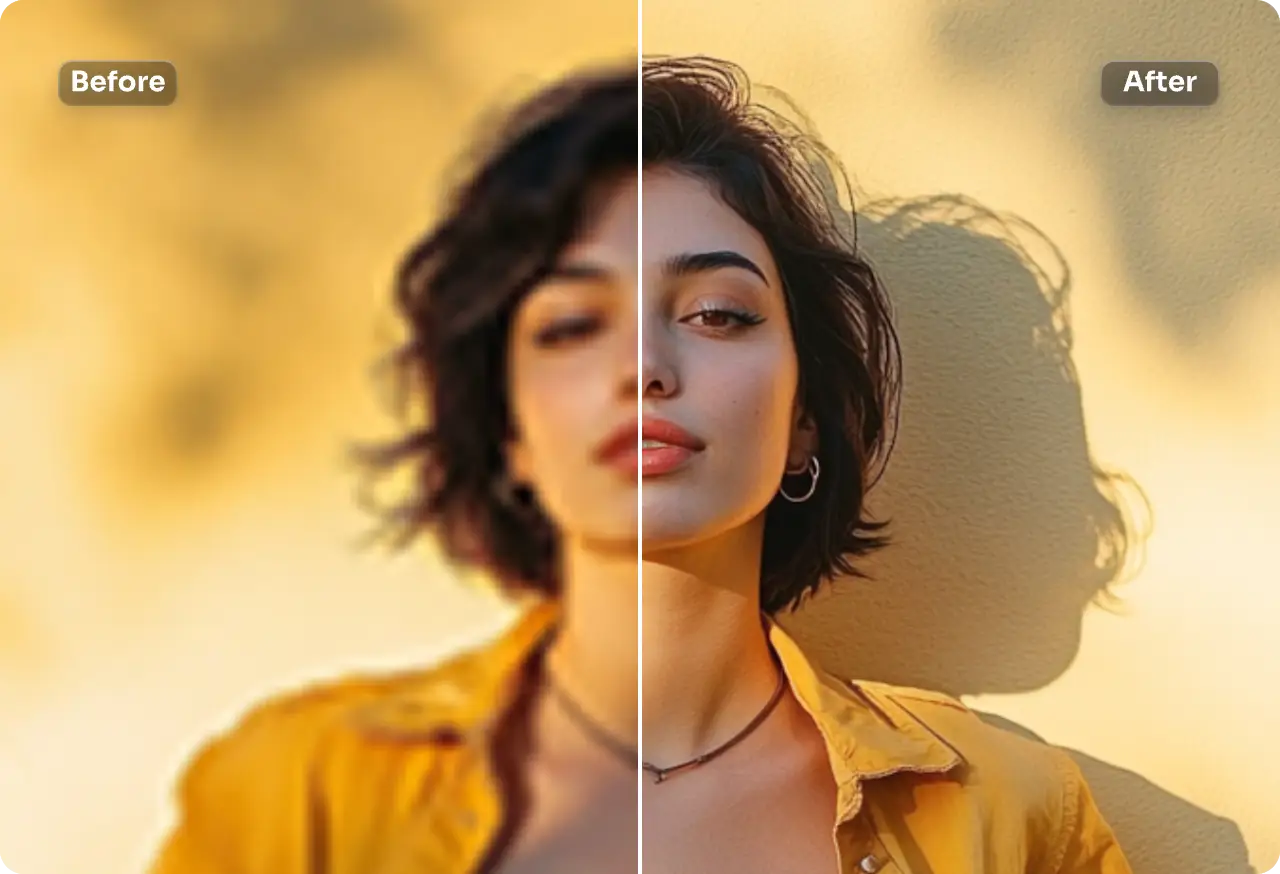
Before trying any AI photo enhancer, it helps to understand one thing these tools can’t do, they can’t recover detail that was never captured in the first place. What they do instead is make an educated guess, based on patterns learned from millions of sharp images, about what the missing detail probably looked like. For moderately blurry or low-resolution photos, this works remarkably well. For a photo that’s badly out of focus or shot in near darkness, no AI tool is going to turn it into something crisp, and any tool that claims otherwise is overselling what the technology actually does.
With that expectation set correctly, here’s what the current free tools are actually good at, and which one fits a given situation.
What these tools are actually doing
AI photo enhancement generally covers two related but different jobs, and it’s worth knowing the difference because some tools focus on one and not the other.
Upscaling increases the pixel dimensions of an image, taking a small photo and enlarging it to something like 4K, while using AI to fill in texture and edge detail rather than just stretching existing pixels, which is what a plain resize does and why plain resizing always looks blurry.
Enhancement improves the quality of the image at its existing size, sharpening soft focus, reducing noise and compression artifacts, and sometimes correcting lighting or color. A photo can be enhanced without being upscaled, and upscaled without much enhancement, though most free tools now bundle both into a single one-click process.
Tools worth trying
Krea. Krea’s enhancer and upscaler handle both jobs in one interface, taking a low-resolution or blurry image and pushing it up to 4K or 8K while sharpening detail and reducing noise. It’s a browser-based tool with no installation, and the free tier allows several images a day, enough to test results before deciding whether you need anything more. Krea is direct about the limitation mentioned earlier, its own documentation notes that upscaling can meaningfully improve moderately blurry or compressed images, but can’t recover detail from something that was never sharp to begin with, such as a heavily motion-blurred shot.
Remini. Remini is a mobile app built specifically around faces, portraits, and old family photo restoration. It tends to do a genuinely good job on blurry or low-quality portraits, recovering facial detail in a way that general-purpose upscalers sometimes miss. It’s less suited to landscapes or product photos, where its portrait-trained model doesn’t have the same advantage. The free tier gives a limited number of enhancements per day rather than unlimited use.
Let’s Enhance. This one is built around commercial use, product photography, real estate listings, and marketing images that need to go from a small source file to print-ready resolution. The free tier gives a fixed number of credits (currently around ten) rather than a daily allowance, so it works better as a one-time batch for a small project than as an ongoing free workflow.
Fotor. Fotor’s enhancement feature is a simpler one-click tool that adjusts lighting, color balance, and sharpness together rather than focusing specifically on resolution. It’s a reasonable option if what you actually need is a photo that looks a bit cleaner and better lit, rather than a significant resolution increase.
A side by side view
| Tool | Best suited for | Free tier shape |
|---|---|---|
| Krea | General upscaling and enhancement, up to 8K | Several images per day |
| Remini | Blurry faces, old portrait restoration | Limited enhancements per day |
| Let’s Enhance | Product photos, real estate, print resolution | Fixed number of credits, not daily |
| Fotor | Quick lighting, color, and sharpness fixes | One-click, no heavy upscaling focus |
Free tier limits across these tools get adjusted periodically, so treat the numbers above as a general shape rather than a fixed promise, and check each tool’s current page before planning a project around a specific quota.
How to pick the right one for your photo
If the photo is a portrait or a face and the main problem is blur or age-related fading, start with Remini, since its model is specifically trained on that kind of image.
If you’re preparing a product photo, listing image, or anything that needs to reach print resolution, Let’s Enhance is built for exactly that job, even though the free tier is a one-time batch rather than daily use.
If you just want a general-purpose tool that handles most kinds of photos reasonably well and gives you daily free use rather than a one-time credit batch, Krea is the more sustainable option for ongoing work.
If the photo mostly needs better lighting and color rather than a resolution boost, Fotor’s simpler one-click adjustment will get there faster than a heavier upscaling tool.
Common mistakes people make
Expecting AI to reconstruct detail that was never captured. A photo taken in low light with heavy motion blur has genuinely lost information, and no AI model can perfectly restore it. What you’ll get is a plausible reconstruction, which can look convincing but isn’t the same as recovering the original detail.
Uploading a heavily compressed copy instead of the original file. Enhancement results depend on what the AI has to work with. A screenshot of a photo, or a version that’s already been through several rounds of compression on social media, gives the model less to work with than the original file would.
Over-upscaling past what the source can support. Pushing a small, blurry image all the way to 16K rather than a more modest 2x or 4x increase often produces a result that looks artificial or overly smoothed, since the AI has to invent proportionally more detail the further it stretches the image.
FAQ
Can AI actually fix a very blurry photo, or just a slightly soft one? It depends on the type and severity of blur. Moderate softness, compression artifacts, and mild motion blur respond well to AI enhancement. Severe motion blur or extremely out-of-focus shots have lost real detail that the AI can only approximate, not truly recover.
Is there a real difference between “enhance” and “upscale”? Yes. Upscaling increases the pixel dimensions of an image. Enhancement improves sharpness, noise, and sometimes lighting at the existing size. Many free tools now do both in a single step, but they are technically separate operations.
Do these tools work on old scanned family photos? Often yes, particularly tools like Remini that are specifically trained on face and portrait restoration. Results vary depending on how damaged or low-resolution the original scan is.
Will an upscaled photo look identical to a genuinely high-resolution original? Not exactly. AI upscaling produces a highly plausible reconstruction, but it is generated detail rather than detail that was actually captured by the camera. For casual use this distinction rarely matters, but it’s worth knowing for anything where absolute accuracy is important, such as forensic or legal contexts.
Do free versions of these tools add a watermark? This varies by tool and can change over time, so check the specific platform’s current free-tier terms before relying on a watermark-free export for something you plan to publish or sell.