How to Remove Background From Photos Free
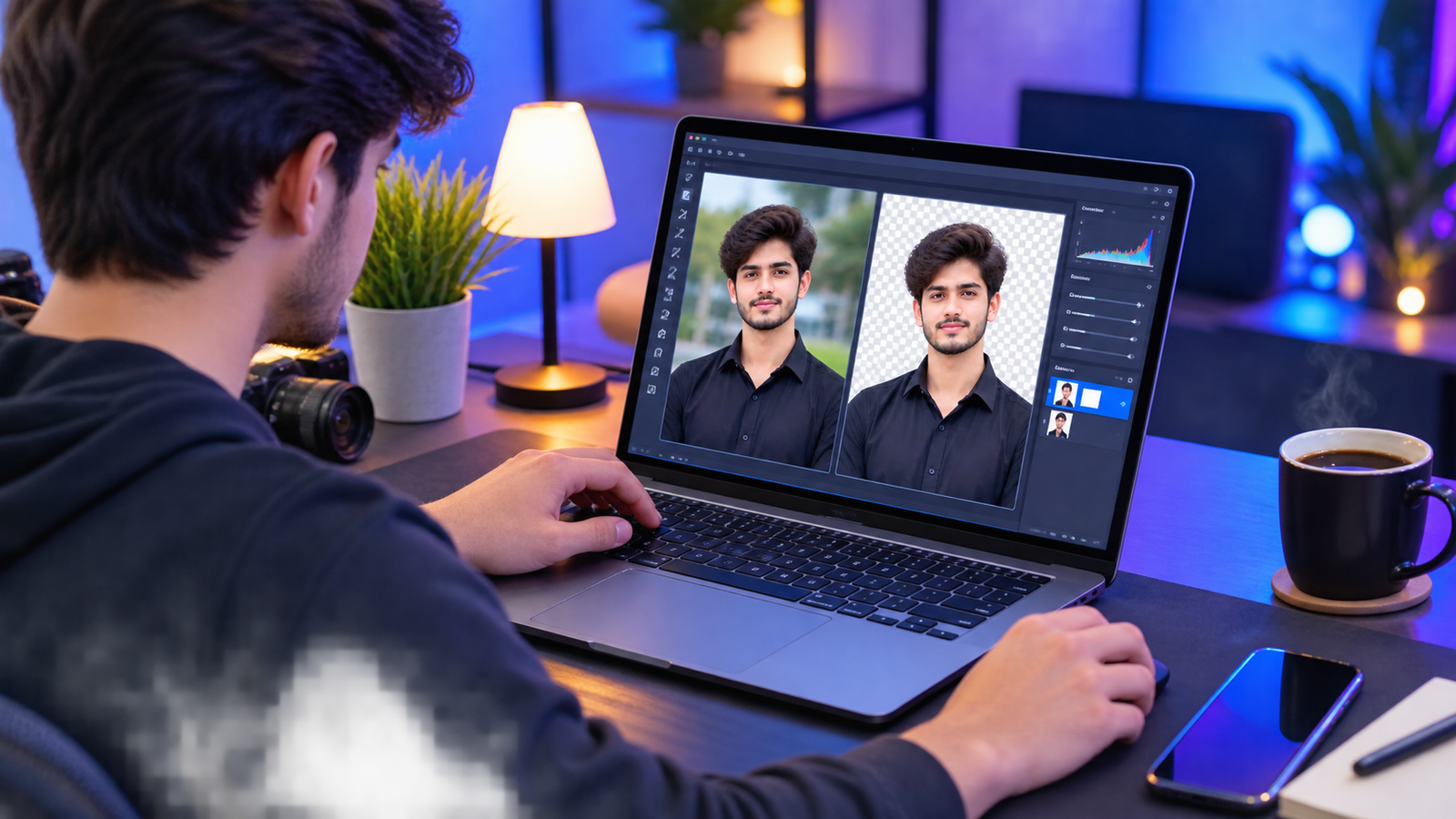
Removing a background used to mean opening Photoshop and spending twenty minutes tracing around hair with the pen tool. AI has turned this into something closer to a three-second operation, upload a photo, get a clean cutout back. The tool you pick matters more than it might seem, though, because free tiers differ in resolution limits, how well they handle tricky edges like hair and fur, and whether your images stay private or get uploaded to a server.
This guide walks through the free AI background removers worth knowing about, what each one is actually good at, and where the catch usually shows up on the free plan.
The fastest way to do it
Regardless of which tool you choose, the basic process is nearly identical everywhere:
- Upload your photo to the tool’s website or app.
- Wait a few seconds while the AI detects the subject and separates it from the background.
- Download the result, usually as a PNG with a transparent background.
- If needed, add a new background color or image afterward, either in the same tool or in a separate editor.
The differences between tools show up in steps 2 and 3, specifically in edge accuracy around complicated details and in what the free tier actually gives you at download time.
Tools worth trying
Remove.bg. This is the tool that made one-click background removal mainstream, and it remains a strong benchmark for portraits, especially around hair. The AI model has been refined over several years specifically on difficult edge cases. The tradeoff on the free tier is resolution. Free exports are capped well below full resolution, which is fine for social media posts or quick previews but not sufficient for anything that needs to be printed or used at large size. Getting the full-resolution file requires a paid credit.
Adobe Express. Adobe’s free background remover runs on the same Sensei AI technology used across their professional tools, and the quality reflects that, particularly on well-lit portraits and product shots. It’s part of the broader Adobe Express suite rather than a standalone tool, so you’ll be working inside that interface. If you’re already using other Adobe products, this is a natural fit. If not, it’s still worth trying purely for the removal quality.
Canva. Canva’s background remover is convenient specifically because it’s built into a platform many people already use for other design work, so there’s no separate upload and download step if you’re building something inside Canva anyway. The accuracy trade-off is real, though. On complex images, hair against busy backgrounds, transparent objects, fine detail, Canva’s cutouts tend to be noticeably rougher than dedicated tools like Remove.bg or Adobe Express. It works well for quick social graphics where a perfect edge isn’t critical, and less well for anything that needs to hold up at close inspection.
Pixlr. Pixlr pairs background removal with a full browser-based photo editor, which is useful if you want to remove a background and then immediately retouch or composite the image without switching tools. It supports meaningfully larger export resolutions on its free tier than some competitors, making it a reasonable option when you need a usable file size without paying.
PhotoRoom. PhotoRoom leans specifically toward product photography and e-commerce use, with batch processing and templates built around listing photos rather than general portraits. If you’re preparing multiple product images for an online store, the batch workflow saves real time compared to processing images one at a time in a general-purpose tool.
Open-source, self-hosted models. Models such as RMBG (developed by BRIA AI), U2Net, and MODNet are publicly available and can be run on your own computer. This route requires comfort with installing and configuring software, and reasonable hardware, but it comes with two clear advantages, unlimited processing with no daily cap, and your images never leave your machine, which matters if you’re working with anything private or client-confidential. The quality gap between these open-source models and commercial tools has narrowed considerably, though a fully commercial tool still tends to edge ahead on the hardest cases like wispy or windblown hair.

A side by side view
| Tool | Free resolution | Strongest at | Where images are processed |
|---|---|---|---|
| Remove.bg | Capped, below full resolution | Portrait and hair edge quality | Uploaded to server |
| Adobe Express | Free tier available | Well-lit portraits and product shots | Uploaded to server |
| Canva | Free, built into platform | Quick social graphics | Uploaded to server |
| Pixlr | Larger free export size | Removal plus in-tool editing | Uploaded to server |
| PhotoRoom | Free tier with templates | Batch product photos | Uploaded to server |
| Open-source (RMBG, U2Net, MODNet) | Unlimited, full resolution | Privacy, no daily cap | Runs locally on your device |
Exact free-tier limits on commercial tools get adjusted periodically, so treat the resolution and quota details above as a general shape of what to expect rather than a permanent guarantee, and check each tool’s current pricing page before relying on a specific number.
How to choose based on what you’re actually doing
If you’re cutting out a portrait and want the cleanest possible edge around hair, start with Remove.bg or Adobe Express, and accept that you may need to pay for full resolution if the free export isn’t large enough for your use.
If you’re working inside Canva already for a social post or presentation, use its built-in remover for speed, but expect to redo the edge manually or switch tools if the subject has complicated hair or transparent elements.
If you’re preparing several product photos for an online listing, PhotoRoom’s batch and template features will save more time than removing backgrounds one by one in a general tool.
If privacy is a real concern, client photos, anything sensitive, or you simply don’t want images uploaded to a third-party server, a local open-source model is the only option here that keeps everything on your own machine, provided you’re willing to handle the setup.
Common mistakes people make
Judging a tool by the preview instead of the actual download. Some tools show a clean, full-size preview in the browser but only allow a smaller or watermarked file when you actually download it. Always check what the exported file looks like before deciding a tool is good enough.
Assuming free tier resolution is the same everywhere. It isn’t. A photo that looks fine on Instagram at a small size might be unusable if you need it for a printed flyer or a large product listing image, and the resolution cap is exactly where most free tiers hold back value for a paid upgrade.
Uploading sensitive images without checking the privacy policy. Most cloud-based tools state that uploaded images are deleted within a set period, but the guarantees and retention periods vary, and not every tool makes this easy to verify. For anything sensitive, a local, offline tool avoids the question entirely.
FAQ
Which free tool gives the cleanest edges around hair? Remove.bg and Adobe Express are generally considered the strongest for portrait hair detail among free options, based on how long their underlying models have been refined on exactly this kind of edge case.
Do free background removers actually give full resolution? Not usually. Most cloud-based tools cap free exports below full resolution and reserve the full-size file for a paid credit or subscription. If you need a large, print-ready file, check the specific resolution limit before relying on the free tier.
Is it safe to upload personal or client photos to these tools? Most tools state that uploaded images are deleted after a set period, but retention policies and guarantees vary between providers, and not all of them are independently verifiable. If you’re working with sensitive images, a local, self-hosted model avoids uploading anything at all.
Can I remove a background without installing any software? Yes. Remove.bg, Adobe Express, Canva, Pixlr, and PhotoRoom all work directly in a browser with no installation. Local, self-hosted options like RMBG or U2Net are the only category here that require software setup.
Do these tools work well on animals and objects, not just people? Quality varies by tool and by subject. Several of the tools covered here handle animals and product objects reasonably well, though the most refined edge detection across all of them still tends to be on human portraits, since that’s the use case most models have been trained on most heavily.
Suggested Article
- “Free AI image generators, compared” → link to an article on generating images from scratch, a common step before or after background removal